
Outlook Signature Formatting Fixes That Actually Hold Up in Production
A practical Outlook guide focused on stable structure, safe image handling, and the QA habits that prevent recurring rendering issues.

Email signature work is often treated like a finishing touch, but Outlook rendering issues can make an otherwise polished signature look broken at the exact moment a high-value customer or partner receives it. When operations, IT, and marketing teams supporting Outlook users approach fixing Outlook signature formatting as a business system rather than a cosmetic task, they reduce rework, shorten onboarding, and protect every outgoing message from looking improvised. That shift matters because recipients notice small inconsistencies immediately: a cropped logo suggests poor coordination, a broken phone link slows down replies, and an outdated disclaimer creates avoidable risk. A strong signature program turns those weak points into a steady layer of trust that supports sales conversations, customer support, recruiting, and executive communication at the same time.
This guide is built around a practical idea: a rendering-safe approach that reduces surprises across desktop Outlook, webmail, and forwarded threads. Instead of chasing design tricks or copying whatever another company pasted into Gmail, the better route is to define a repeatable operating model, confirm which fields truly matter, test on the email clients your team already uses, and create a light governance rhythm that keeps everything current. That is the purpose of an Outlook-safe production workflow: a way to connect branding, usability, compliance, and execution so the signature stays useful after launch rather than looking good for one week and then drifting out of control.
Accept Outlook constraints as design inputs
The first conversation should not be about fonts, banners, or icon styles. It should be about the operational promise behind the signature. Outlook work starts with acceptance of reality: the client is conservative, so the structure must favor reliability over visual ambition. That means identifying who owns the master template, which teams need a variation, which fields can be personalized, and where the signature should actively help a conversation move forward. When those questions are skipped, people compensate by making local edits, and local edits are usually the fastest path to visual drift. Starting with governance sounds less exciting than starting with design, but it is exactly what allows the design to remain consistent after the first rollout.
Requirement gathering works best when it is specific and slightly uncomfortable. Teams should define which Outlook environments matter most, what must never break, and which design touches are optional if they introduce instability. Ask stakeholders to point out the information recipients actually use, the elements that regularly become outdated, and the details that should never be touched without approval. That conversation usually reveals hidden complexity: regional phone formats, temporary campaign links, recruitment banners, holiday schedules, or legal clauses that vary by market. Once those realities are documented, the signature stops being an abstract brand asset and becomes a manageable operational product with clear constraints.
- Using layout techniques that depend on CSS Outlook does not handle reliably.
- Uploading oversized images that distort or load slowly in received messages.
- Declaring the signature ready after testing in only one Outlook view.
Choose structure and assets that survive rendering changes
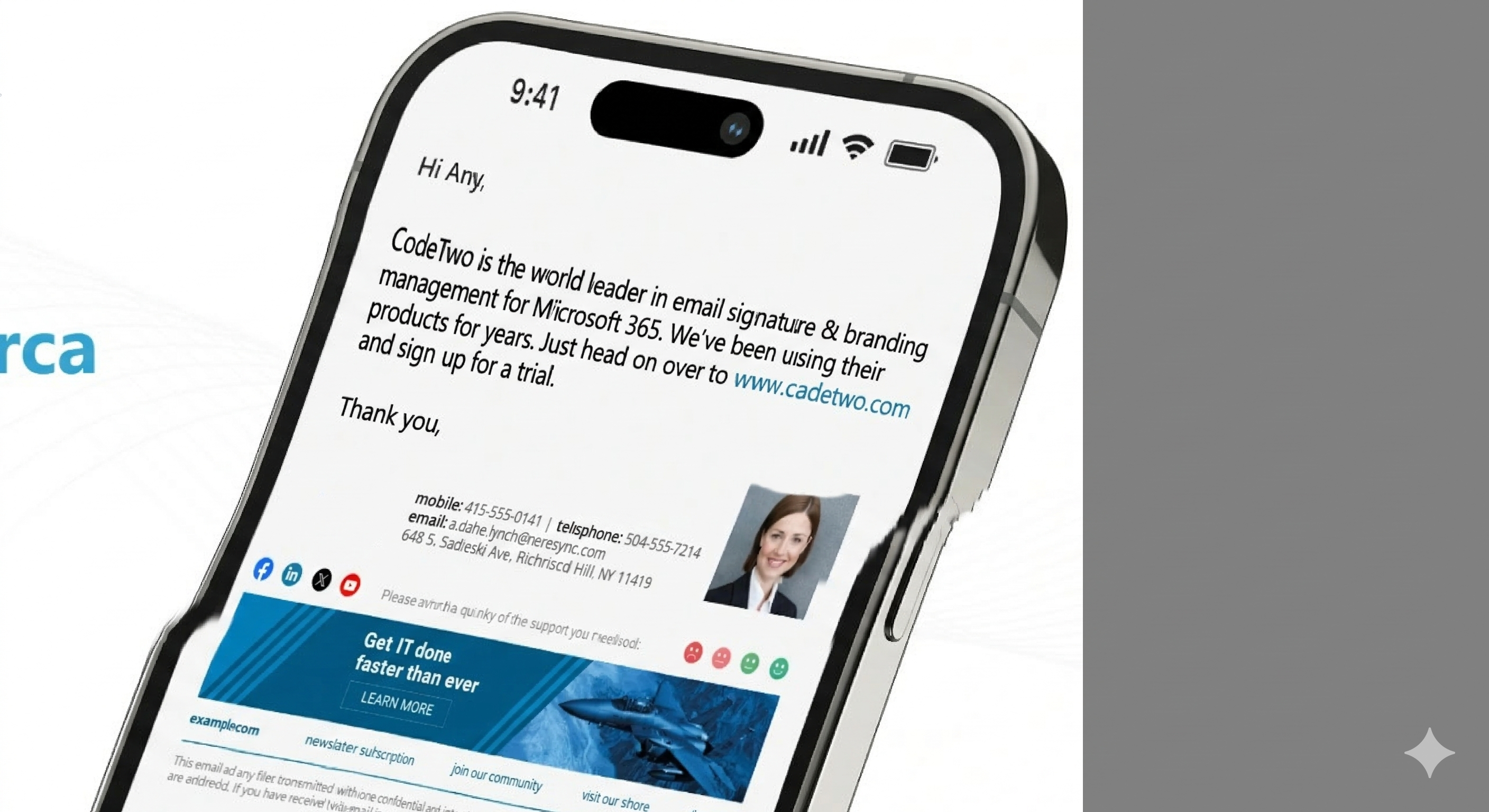
A reliable signature layout is less about decoration and more about disciplined hierarchy. Simple structure, controlled spacing, and explicit image dimensions usually outperform highly styled layouts that rely on modern CSS support. The strongest versions make the name easy to find, the role easy to understand, and the primary action easy to scan without forcing the recipient to interpret a crowded block of links. Visual restraint is useful because the email body already carries the main message; the signature should support credibility and provide a small next step, not compete with the content above it. Teams that respect hierarchy usually end up with signatures that travel better across Gmail, Outlook, Apple Mail, forwarding chains, and mobile replies.
Content choices matter just as much as layout choices. This often means trimming excess decorative elements, reducing stacked CTAs, and using copy that remains helpful even if some styling is stripped back by the client. A signature becomes more persuasive when every line earns its place. If an item does not help identification, contact, compliance, or conversion, it is probably consuming space that could be used more effectively elsewhere. This is also where imagery needs discipline. A headshot, logo, or campaign banner should clarify identity and create recognition, but it should never slow loading, dominate the message, or create awkward empty blocks when images are blocked by the email client. Thoughtful restraint improves both aesthetics and performance.
Make installation simple for the people sending email
Even the best template fails if employees cannot use it confidently. Users need a publishing process that does not ask them to become troubleshooters every time Outlook rewrites spacing or copies old formatting from earlier signatures. Good enablement means a new hire should understand how to generate, install, and verify a signature in minutes, not after a string of internal tickets. The workflow needs to explain what can be edited, what is locked, and where to go for help if something looks wrong. Teams often underestimate this part because the template feels finished once the design is approved. In practice, the success of a signature program depends heavily on whether everyday users can reproduce the approved version without having to interpret unwritten rules.
Edge cases are the fastest way to expose whether a process is genuinely ready. Reply chains, forwarded emails, pasted content from Word, and signatures edited on one machine but viewed on another are the classic scenarios where Outlook exposes hidden weaknesses. A mature setup anticipates those moments before launch and includes fallback guidance that is short enough to be followed under time pressure. That is why support copy matters: concise internal instructions, screenshots, and one escalation path prevent people from improvising fixes that create even more inconsistency. The goal is not to eliminate every exception. The goal is to make exceptions boring, predictable, and easy to recover from without weakening trust in the template itself.
Test forwarded threads, replies, and image behavior
Quality assurance deserves its own slot in the rollout timeline because email signatures break in ways that static mockups never reveal. Outlook QA should be built around realistic message behavior, not just a single screenshot in one inbox state. Test messages should be sent to real inboxes, forwarded internally, viewed on different screen sizes, and opened with images blocked as well as enabled. That process reveals spacing problems, alignment shifts, logo distortion, CTA visibility issues, and legal text that becomes unreadable once the email client applies its own defaults. QA is not an admission that the design is fragile. It is the discipline that turns a promising layout into a dependable production asset.
At minimum, most companies should compare Windows Outlook, Outlook on the web, and one mobile email context because each can reveal a different class of issue. The practical lesson is simple: if one client matters to your organization, it deserves its own acceptance criteria. Teams get into trouble when they validate only in the environment preferred by the person building the template. A healthier habit is to define a small but non-negotiable testing matrix and use the same one every time the signature changes. That habit shortens future reviews because people stop debating what good looks like; they already have a clear benchmark for passing or failing a release.
- Test in desktop Outlook, Outlook on the web, and at least one mobile context.
- Forward and reply to the test email to see how the structure behaves deeper in the thread.
- Confirm image sharpness, spacing, and phone link behavior after publication.
Control edits so fixes stay fixed
Once the signature is live, governance becomes the difference between a polished system and a slowly decaying one. Strong governance in Outlook environments often means limiting manual editing and preserving one approved source that has already passed the company test matrix. The healthiest setup gives people enough flexibility to keep their own contact details current while protecting the structural elements that carry brand and legal risk. That balance keeps employees productive without opening the door to constant redesign from department to department. Governance is most effective when it feels ordinary: one owner, one review cadence, one change log, and a short path for campaign or compliance updates.
IT or operations may own deployment details, while marketing owns the visual standard and legal reviews any disclaimer updates that affect regulated communication. This is especially important when responsibilities span marketing, operations, customer success, and regional teams. If ownership is vague, updates stall until a problem becomes visible in customer emails. If ownership is explicit, improvements happen quietly and the signature evolves without drama. That is the standard worth aiming for: a signature program that supports day-to-day communication so smoothly that most employees barely think about it, while leadership still knows it can be updated quickly when the business changes.
Track recurring incidents and remove the root causes
Measurement closes the loop and proves whether the signature is helping the business or just decorating it. Teams should measure not only clicks or adoption but also recurring formatting incidents, time spent fixing them, and which clients create the most support noise. The right review does not obsess over vanity data. It compares expected behavior with real behavior: are employees actually using the approved version, are recipients clicking the right CTA, are support teams seeing fewer setup problems, and are updates reaching every market without lag. When those signals are reviewed consistently, the signature becomes easier to defend internally because it is tied to outcomes, not just personal taste or brand preference.
Improvement usually comes from safer structure and tighter QA, not from adding more styling in hope that the client will finally respect it. A useful cadence is a monthly operating review with a deeper quarterly refresh. Monthly reviews catch fast-moving issues such as broken links, seasonal campaigns, or low adoption in a specific department. Quarterly reviews create space for bigger questions around layout, localization, device behavior, and whether the signature still reflects the company you are becoming. Iteration works best when it is deliberate. Random edits create noise; structured reviews create compounding quality.
- Frequency of Outlook-specific formatting tickets.
- Time required to resolve a broken signature after a change.
- Repeat failure patterns tied to one client, one template block, or one publishing method.
Final takeaway
The most effective Outlook fixes are rarely flashy. They are disciplined choices that accept the client’s limits and still deliver a trustworthy, polished result. The central idea to keep is that a signature succeeds when it feels effortless to the sender and reassuring to the recipient. That combination comes from operational clarity more than visual novelty. A thoughtful system gives teams confidence because they know every message leaves the company looking aligned, credible, and ready for the next action.
If you are updating this part of your email experience now, start small but start with the full system in mind. Define the owner, simplify the template, test the environments that matter most, and document how changes will be reviewed. Those steps may look simple, yet together they create the durable advantage most teams are actually looking for: signatures that are easier to manage, nicer to read, and strong enough to support the brand every single day.